



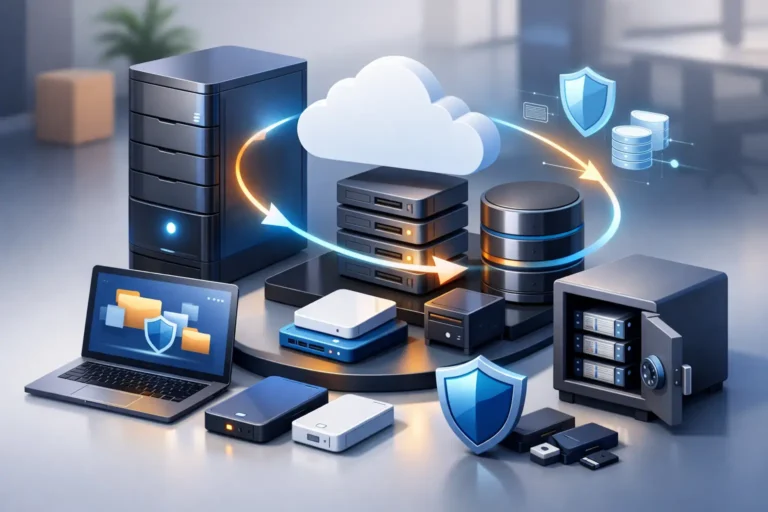
A backup only feels boring until someone deletes a client folder, a server drive fails on payroll day, or ransomware locks up the office before lunch. That is why choosing the best backup solutions for offices is not really about storage space alone. It is about how fast your team can recover, how much risk you can tolerate, and whether your backup plan actually works when the pressure is on.
For small and mid-sized offices, the wrong backup setup usually fails in one of two ways. It is either too light, which means important data is missing when you need it, or too complicated, which means nobody checks it until something breaks. The right approach is practical. It protects the files, systems, and applications your business depends on without creating more daily work for your staff.
What the best backup solutions for offices need to do
A good office backup should cover more than shared documents. Most businesses also need protection for workstations, servers, cloud platforms, email, accounting data, line-of-business software, and sometimes voicemail or phone system settings. A law office may care most about document version history and email retention. A medical or dental office may need fast recovery for scheduling systems and patient records. A construction company may need to protect job files spread across laptops, desktops, and mobile devices.
That is why there is no single product that wins for every office. The best option depends on your recovery goals. If your office can be down for a day, that is one kind of solution. If even two hours of downtime creates a serious business problem, you need a different level of backup and disaster recovery.
Two measures matter here. Recovery point objective is how much data you can afford to lose, measured in time. Recovery time objective is how quickly you need systems back. If your backups run once per night, you could lose a full workday. If your systems take twelve hours to restore, your staff may be idle most of the next day. Those trade-offs should be clear before you choose anything.
Local, cloud, or hybrid backup?
Local backup stores data on equipment in or near the office, such as a network attached storage device or backup appliance. The biggest advantage is speed. Restoring large files or full systems is usually faster when the backup is nearby. Local backup can be a strong fit for offices with large data sets, aging internet connections, or applications that need quick recovery.
The weakness is obvious. If there is fire, theft, flooding, power damage, or ransomware that spreads across the network, local-only backup may not be enough. If the backup device is always connected and poorly secured, it can become part of the same incident.
Cloud backup sends encrypted copies of your data to an offsite provider. This helps protect against physical damage at the office and gives businesses an extra layer of resilience. It is often easier to scale, and it works well for distributed teams or companies relying heavily on Microsoft 365 or similar platforms.
The trade-off is recovery speed. Pulling large amounts of data back over the internet can take time, especially after a major outage. Cloud backup is excellent for resilience, but not always the fastest path to full recovery.
Hybrid backup combines both. A local device handles quick restores, while a cloud copy protects against site-wide disaster. For many small and mid-sized businesses, this is the most balanced answer. It costs more than a simple external drive and less than a major outage.
The most practical backup setups for offices
For a very small office with basic file storage and cloud email, a managed cloud backup service may be enough if it includes device backup, versioning, and security monitoring. This can work well for firms that do not run a local server and mainly use cloud apps. Even here, though, it is worth checking what is actually being backed up. Many businesses assume Microsoft 365 or Google Workspace gives full backup by default. That assumption causes trouble.
For offices with an on-premise server, shared drives, or specialized software, local backup with cloud replication is usually the safer model. It gives you fast restores for day-to-day mistakes and an offsite copy if the office has a larger failure. This is often the sweet spot for professional practices that need both reliability and predictable recovery.
For businesses where downtime is expensive, image-based backup is worth serious attention. Instead of just copying files, it captures full system images so machines or servers can be restored faster. In some cases, systems can even be virtualized temporarily while hardware issues are resolved. That matters when your office cannot wait days for replacement equipment and manual rebuilds.
For companies with remote staff, laptops should not be left out of the backup plan. Important data still ends up on local devices, even when policies say otherwise. Endpoint backup helps protect work done outside the office and reduces risk when devices are lost, stolen, or damaged.
Security matters as much as storage
Backup is part of cybersecurity, not a separate project. If your backup system is easy to access, easy to delete, or never monitored, it may fail at the worst possible moment.
The best backup solutions for offices include encryption, access controls, and protection against unauthorized deletion. They also support immutable or protected backup copies where possible. That means backup data cannot be altered or erased easily, which is especially valuable in ransomware scenarios.
Monitoring matters too. A backup that failed three weeks ago is not protection. It is a false sense of security. Offices need alerts, routine review, and periodic test restores. The test restore piece is often skipped because people are busy. It should not be. A backup strategy is only proven when data is successfully recovered.
Retention is another area where offices make avoidable mistakes. If you keep backups for only a short time, you may miss a slow-moving issue like corrupted files, silent data loss, or malware that sat undetected for weeks. On the other hand, keeping everything forever can increase storage costs and create unnecessary complexity. Retention should match the business, the data type, and any legal or compliance requirements.
Common backup mistakes offices make
One of the biggest mistakes is relying on manual backups. If someone has to remember to plug in a drive, swap media, or check a task every Friday, it will eventually be missed. Automation is more dependable.
Another common problem is backing up only the obvious data. Shared folders may be protected, but application settings, databases, local desktops, cloud mailboxes, and user devices are overlooked. Recovery then becomes partial and frustrating.
Offices also underestimate recovery time. A plan that sounds fine on paper may be too slow in real life. Restoring a few files is one thing. Rebuilding an office after server failure is another. This is where managed planning helps. Businesses need a realistic view of how recovery would work, not just whether backup exists.
There is also the issue of growth. A backup setup that worked for five employees may not suit twenty-five, especially once the business adds larger files, more cloud services, or stricter security requirements. Backup should be reviewed as part of normal IT planning, not just after a scare.
How to choose the best backup solution for your office
Start with the business impact. Ask which systems your team cannot function without, how long you could tolerate downtime, and how much recent data loss would be acceptable. That sets the direction more clearly than shopping by brand name or monthly cost alone.
Then look at where your data lives. If it is split between local servers, Microsoft 365, user laptops, and industry-specific applications, your backup plan needs to reflect that mix. Offices often have a more complicated environment than they realize.
After that, evaluate management. Who checks backup status, responds to failures, runs test restores, and updates the plan when your systems change? Many offices do better with a managed service because backup is one of those tasks that seems simple until recovery is urgent. RA IT Support often sees businesses with backup in place but no clear recovery process, and that gap is where downtime gets expensive.
Finally, balance cost against consequence. The cheapest backup option is rarely the least expensive outcome. A missed day of work, lost records, or a failed ransomware recovery can cost far more than a well-planned backup system.
A good office backup does not need to be flashy. It needs to be consistent, secure, and built around how your business actually works. If your current setup has not been tested, or if nobody is quite sure what is protected, that is a good reason to take a closer look now rather than during your next outage.
